








Lightroom Classic now supports native tethered capture for Fujifilm cameras. Select File > Tethered Capture.
FR-reader Dave sent me his feedback:
I’ve got it working on my X-H2 and GFX100 – full control of the camera, live-view, transfer. Very happy as the Fuji plugin was awful.
Prerequisites for tether capture with Fujifilm cameras
Before you begin tether capture with your Fujifilm camera, ensure that the following settings are as follows:
- Camera mode – Set the camera to USB Tether Shooting mode
- Tethering Plugins – Select Edit > Plugin Manager to turn off all tether plugins installed in Lightroom Classic.
- Camera settings – If you can’t change the camera settings from the Tether bar, ensure that:
- Set the shutter speed dial to T – timed
- Set the switch on the lens to A – auto aperture
- Set the ISO to C – command
Set up and start Tethered Capture
- Connect a compatible Fujifilm camera to your computer and open Lightroom Classic.
- In your Fujifilm camera settings, select PC remote mode. To find the setting, refer to the manual for your particular camera model.
Note: Ensure that PC Save Image Size is set to Original if RAW images need to be imported. - Select File > Tethered Capture > Start Tethered Capture. Check Import photos from a tethered camera to learn how to change the tethered capture settings.
Compatible Fujifilm cameras
| Camera model | Minimum Lightroom Classic version required |
|---|---|
| X-T1 | 14.4 |
|
X-T2 (*)
|
14.4 |
| X-T3 | 14.4 |
| X-T4 | 14.4 |
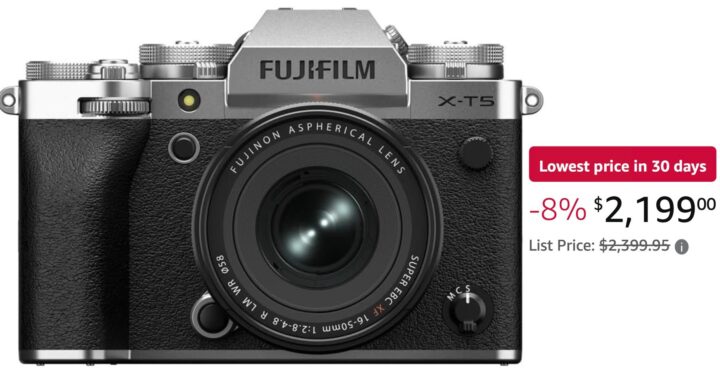
| X-T5 (*) | 14.4 |
| X-T30 | 14.4 |
| X-H1 | 14.4 |
| X-H2 (*) | 14.4 |
| X-H2S | 14.4 |
| X-S10 | 14.4 |
| X-Pro2 | 14.4 |
| X-Pro3 | 14.4 |
| GFX 50S (*) | 14.4 |
| GFX 50R | 14.4 |
| GFX 100 | 14.4 |
| GFX50S II | 14.4 |
| GFX100S | 14.4 |
| GFX 100 II (*) | 14.4 |
*These cameras are internally certified.
Issues and troubleshooting steps
| Known Issue | Workaround |
|---|---|
| The wide-tracking focus point isn’t displaying correctly on GFX 100 II. | |
| Changing any camera setting prevents image capture via the tether bar. | Close and restart the tether bar. |
via Lightroom